Managing Dataset and Table Permissions
I2T features a flexible two-level permission system that allows you to control who can view and edit datasets and individual tables within them.
Overview
Every dataset and every table has its own set of permissions. When both levels have a setting, the most restrictive permission always wins.
This allows you to:
- Share a public dataset with restricted private tables (only specific users can see certain tables)
- Share a private dataset with different access levels across different tables
- Grant read-only access (viewers) separately from edit access (editors)
Understanding Roles
| Role | Can view | Can edit | Can manage ACL |
|---|---|---|---|
| Owner | ✅ | ✅ | ✅ |
| Editor | ✅ | ✅ | ❌ |
| Viewer | ✅ | ❌ | ❌ |
Constraints
- Only users with the system role
editororadmincan be assigned as an Editor. Viewers have no system role requirement. - Only the dataset owner can manage permissions for both the dataset and its tables.
Dataset-Level Permissions
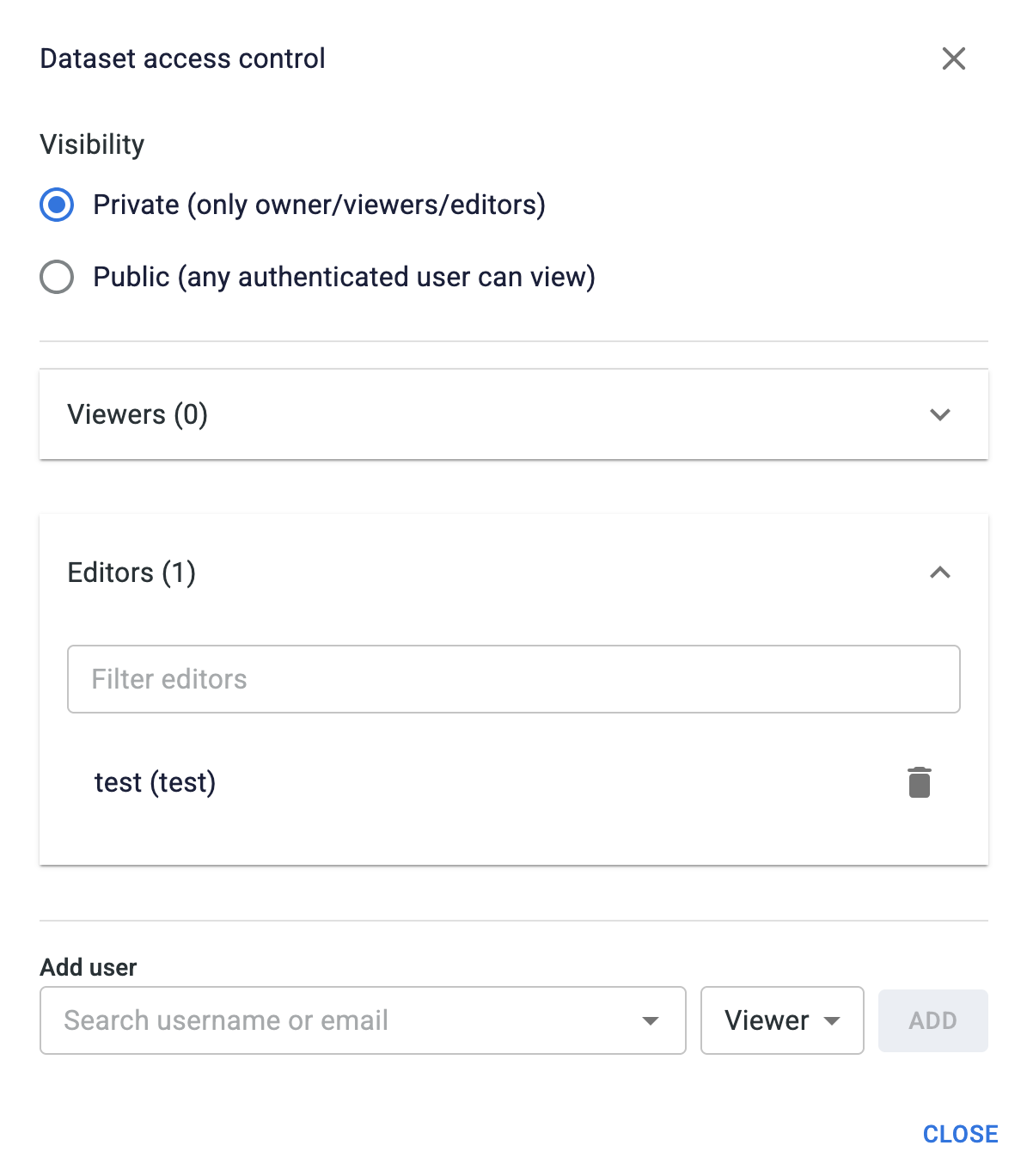
Each dataset has a visibility setting and explicit viewer and editor lists.
Visibility Options
| Setting | Who can access |
|---|---|
| Private | Only the owner + explicitly added viewers + explicitly added editors |
| Public | Any authenticated user can view and edit |
Managing Dataset Permissions
- From the Datasets page, locate your dataset in the list.
- Click the Access button on the right side of your dataset row.
- In the dialog, you can:
- Toggle visibility: Switch between
PrivateandPublic - Add viewers: Search for users and add them as viewers (read-only access)
- Add editors: Search for users (must have
editororadminrole) and add them as editors (can view and edit) - Remove viewers/editors: Use the delete icon next to each user's name
- Toggle visibility: Switch between
NOTE
Making a dataset Public allows any authenticated user to view and edit it. Only make it public if you intend that level of access.
Table-Level Permissions
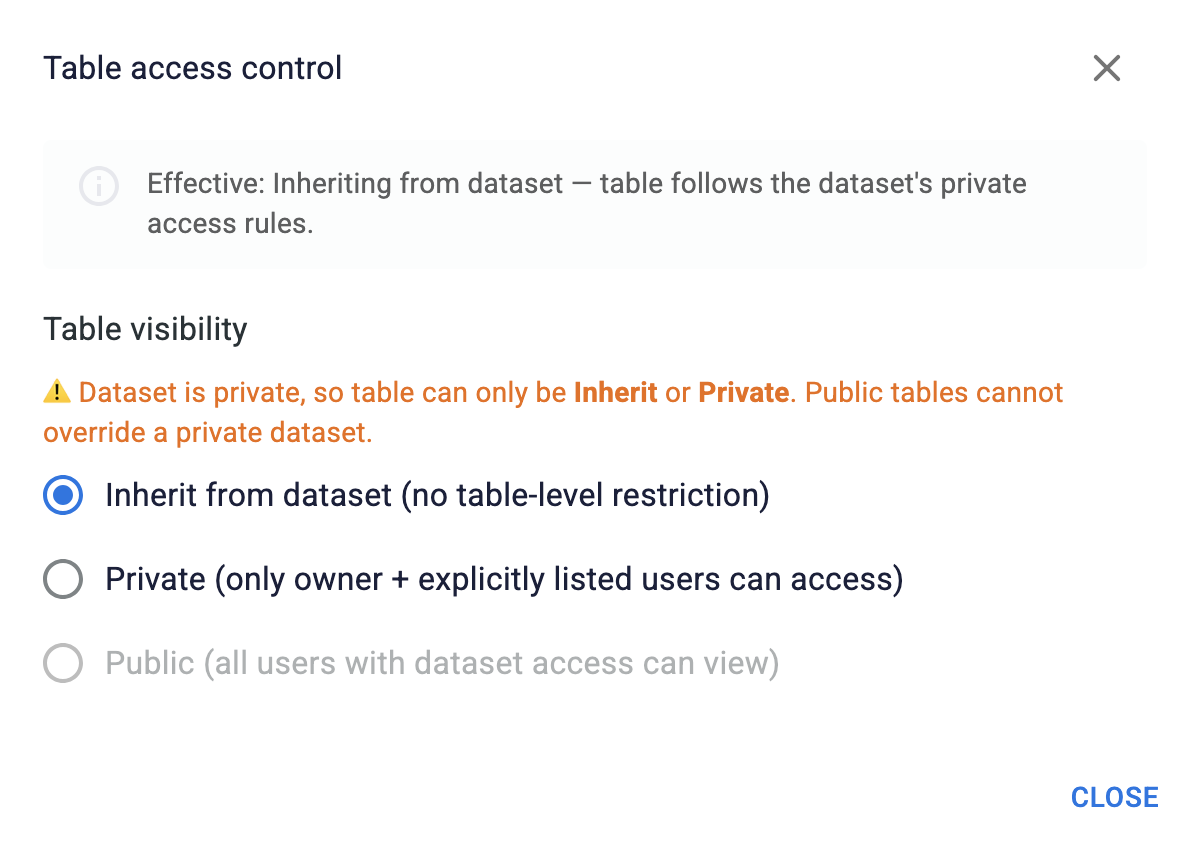
Each table inside a dataset can have its own visibility setting. This allows you to restrict access to specific tables even within a public dataset.
Visibility Options
| Setting | Meaning |
|---|---|
| Inherit (default) | No table-level restriction — the dataset's permissions apply |
| Private | Only the dataset owner + explicitly listed table viewers/editors can access this table |
| Public | All users with access to the dataset can view this table |
Important Constraint
A table cannot be public if its dataset is private. The most restrictive permission always applies. If you try to set a table to public when the dataset is private, the system will reject the change and display a warning.
Managing Table Permissions
- From the Tables page (inside a dataset), locate your table in the list.
- Click the Access button on the right side of your table row.
- In the dialog, you can:
- Toggle visibility: Choose between
Inherit,Private, orPublic - Add viewers (if private): Add users who can only view the table
- Add editors (if private): Add users with
editororadminrole who can edit the table - Remove viewers/editors: Use the delete icon next to each user's name
- Toggle visibility: Choose between
NOTE
When you change the visibility from Private to Inherit, any explicitly added viewers and editors are cleared (since the dataset's permissions apply instead).
The "Most Restrictive Wins" Rule
The effective permission for accessing a table is the logical AND of the dataset and table permissions.
Examples
Example 1: Public Dataset + Private Table
- Dataset:
Public - Table:
Privatewith viewers = [alice] - Result:
- Alice can view and edit the table ✅
- Bob (any other authenticated user) cannot access the table ❌
- Even though the dataset is public, Bob is blocked by the private table
Example 2: Private Dataset + Inherit Table
- Dataset:
Privatewith editors = [bob] - Table:
Inherit - Result:
- Bob (dataset editor) can view and edit the table ✅
- Alice (not on dataset list) cannot access the table ❌
Example 3: Private Dataset + Private Table with Different Access
- Dataset:
Privatewith viewers = [alice], editors = [bob] - Table:
Privatewith editors = [alice] - Result:
- Alice can view but NOT edit the table (she's a dataset viewer, not an editor, so the more restrictive dataset-level permission applies) ❌
- Bob can view and edit (he's a dataset editor and table editor) ✅
Typical Use Cases
Scenario 1: Team Project with Mixed Access
Setup:
- Dataset: Public
- Table A (public data): Inherit (everyone on the team can see and edit)
- Table B (sensitive data): Private with specific viewers
Result: Team members can collaborate on Table A, but only designated people can see Table B.
Scenario 2: Sharing a Subset of Data
Setup:
- Dataset: Private with editors = [
team] - Table A (source data): Private with viewers = [
team] - Table B (cleaned data for external partner): Public
Result: Your team can work internally on both tables, but only Table B is visible to your external partner.
Scenario 3: Read-Only Review
Setup:
- Dataset: Public
- Assign viewers (no editors) to specific users
Result: Users can review the data but cannot make any edits. The owner controls all changes.
What Happens When You Lack Permission
- No dataset access: The dataset doesn't appear in your dataset list or search results.
- No table access: Even if you can access the dataset, the table is hidden from your table list.
- View-only (viewer role): All edit controls in the table viewer are disabled (grayed out). You can see and analyze the data but cannot save changes.
- Edit access: All controls are available and you can save your changes to the table.
Best Practices
Start private, then open as needed: Create datasets as
Privateand add collaborators as needed, rather than making everything public.Use viewers for reviews: Add users as viewers when you want them to see the data but not modify it.
Check table permissions before editing: If you notice all edit controls are disabled, check the Table Permissions dialog — you may be a viewer rather than an editor.
Document your sharing: Keep track of who has access to what tables; complicated permission hierarchies can become confusing.
Leverage table-level access: Use private tables within a public dataset to hide sensitive or intermediate data while sharing the final, cleaned data.
Troubleshooting
Q: I uploaded a dataset but my colleague can't see it.
- A: Check the dataset visibility. If it's
Private, your colleague isn't on the viewers/editors list. Click Access and add them.
Q: My colleague can see the dataset but not a specific table.
- A: The table has
Privatevisibility and they're not listed. Click the table's Access button and add them.
Q: I'm trying to edit a table but all the controls are grayed out.
- A: You likely have viewer-only access. Check the Access dialog for that table. If it says you're a "Viewer," contact the dataset owner to upgrade your access to "Editor."
Q: I can't set a table to Public even though the dataset is Public.
- A: This is expected behavior when the dataset is
Private— you cannot make a table public if its dataset is private, because the most restrictive permission applies.